- Execute the CUI command.
- Scroll down to the Shortcut Menus option and left click on the +.
- Look through the expanded list and left click on the + by Context menu for edit mode.
- Right click on Context menu for edit mode and select New Sub-menu.
- Rename the menu item Menu1 to Isolate Layers.
- Drag the Isolate Layers sub-menu to the location just above the Isolate Objects sub-menu.
- In the Search box under the Command List section, enter layer iso.
- Drag the Layer Isolate command onto the Isolate Layers sub-menu that you previously created.
- Repeat steps 7 & 8 for Layer Unisolate.
- You can change the order of the commands under the sub-menu if necessary.
- You can change the display name of the command in the sub-menu if necessary.
- OK to get out of the CUI editor and you're done.
Showing posts with label CUI. Show all posts
Showing posts with label CUI. Show all posts
Thursday, August 4, 2011
Add Spice To Your Right Click Menu Options
Well, technically I'm going to show you how to add Isolate/Unisolate Layers to your right click menu, but spice sounded better for the title...


Thursday, May 13, 2010
Quick Access to My Tools
Are you tired of having to switch to the Home tab to locate the "Freeze" layer icon? If so, here's a nifty little shortcut that you can use:
Locate the icon on the ribbon tab that you want to access.
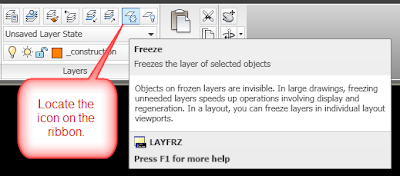
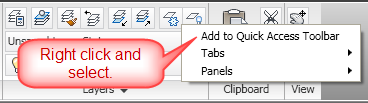
Now right click on the icon and select "Add to Quick Access Toolbar".
Now the icon will appear in the Quick Access Toolbar at the top left of the AutoCAD (or Civil 3D) program window.
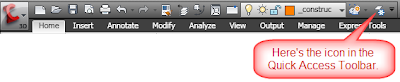 You can see that I've added quite a few icons to mine already.
If you don't like the order of the icons, you can change the order in which they appear in the CUI dialog box.
Locate the icon on the ribbon tab that you want to access.

Now right click on the icon and select "Add to Quick Access Toolbar".

Now the icon will appear in the Quick Access Toolbar at the top left of the AutoCAD (or Civil 3D) program window.
 You can see that I've added quite a few icons to mine already.
If you don't like the order of the icons, you can change the order in which they appear in the CUI dialog box.
Sunday, January 27, 2008
Free Video Tutorials
Many of us enjoy the videos posted on youtube, but is there any reason to view them at work?
Check out the youtube website and search for "Civil 3D". Today, I received 28 results. (If you put "" around the phrase, it will remove videos about the civil war or civil disputes.) The subjects range from CUI, styles, surfaces, corridors, render.
You can also try searches for other software such as "AutoCAD", "AutoCAD 2008", "Excel", etc.
Check out the youtube website and search for "Civil 3D". Today, I received 28 results. (If you put "" around the phrase, it will remove videos about the civil war or civil disputes.) The subjects range from CUI, styles, surfaces, corridors, render.
You can also try searches for other software such as "AutoCAD", "AutoCAD 2008", "Excel", etc.
Saturday, January 12, 2008
What Happened to my Workspace?
I often get support calls asking about CUI and workspace issues. In the surveying department at the company where I work, this happens quite often with Eagle Point. Because we want to make the Civil 3D commands available to the surveyors, we use the civil.cui file as the main customization file in the Eagle_Point_98 profile. Ever so often, this gets reset to the acad.cui file and therefore, the user's everyday workspace is no longer available.
Here's how to verify which CUI file is being used and how to change it if necessary:
Here's how to verify which CUI file is being used and how to change it if necessary:
- At the command prompt, type options and select the Profiles tab.
- Under the "available profiles:" list, verify that Current profile: (at the top of the dialog box) is set to the correct profile.

- If the correct profile was already current, then select the Files tab.
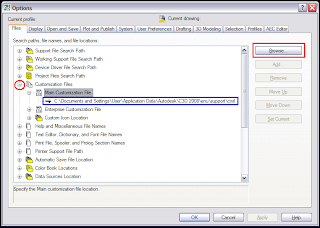
- Under the heading of "Customization Files", select the
 next to "Main Customization File" (red circle) and check which file is being used (blue rectangle).
 - If you're expecting to see "...civil.cui" but you don't , then left click on path below "Main Customization File" (blue rectangle) and then select the "Browse" command button (red rectangle) on the right.
- The default location for the cui files in Civil 3D (Windows XP) is at
C:\Documents and Settings\User\Application Data\Autodesk\C3D 2008\enu\support\
where "User" is your "user name" on that computer.


Wednesday, January 9, 2008
Take Control of Your Double Clicks
A while back I read a great post by Dominick Gallegos:
Editing Note Labels-Right Click No More!
That post inspired me to go crazy with creating double click text edits for Civil 3D labels. I created all of them in the civil.cui file then transferred them to a custom.cui file for others to use. Of course now I'm very spoiled about double clicking any Civil 3D label that allows editing such as sag and crest curve labels in profile views.
Well, today I was editing some dimension text and I tried the double click thing but nothing happened (because I keep the properties palette open on my second monitor). I grumbled, typed ed and pressed enter to make my edits.
As I was working on my third or fourth dimension text edit, I remembered Dominick's post and something occurred to me: Why not just change the default double click action for a dimension?
So I popped open the cui and did just that. Now I'm back to working efficiently with my double click text edits.
Here's how I made the change:
Now go double click a dimension and make sure it works. Don't forget to make other changes as well, such as double clicking a line could be pedit;y;j; for pedit, convert to pline-yes, then j for join (optional).
Editing Note Labels-Right Click No More!
That post inspired me to go crazy with creating double click text edits for Civil 3D labels. I created all of them in the civil.cui file then transferred them to a custom.cui file for others to use. Of course now I'm very spoiled about double clicking any Civil 3D label that allows editing such as sag and crest curve labels in profile views.
Well, today I was editing some dimension text and I tried the double click thing but nothing happened (because I keep the properties palette open on my second monitor). I grumbled, typed ed and pressed enter to make my edits.
As I was working on my third or fourth dimension text edit, I remembered Dominick's post and something occurred to me: Why not just change the default double click action for a dimension?
So I popped open the cui and did just that. Now I'm back to working efficiently with my double click text edits.
Here's how I made the change:
- Open Civil 3D and make sure that your current workspace is saved.
- Execute the CUI command to access the Customize User Interface dialog box.
- In the dropdown list box at the top left section of the dialog, select "acad.cui"
- Left click on the next to Double Click Actions.
- Scroll down and left click on the next to "Dimension".
- It is currently set to "Properties" but we need to create a new command for it.
- Click on the "create new command" star near the middle of the dialog.

- Now on the right side of the CUI dialog, you can find the properties of the new command "Command1".
- Change the Command Name to "Edit Text".
- Change the Macro from "^C^C" to "_ed;".
- Back on the left side of the CUI dialog, left click and hold on "Edit Text" under the Command List.
- Drag the command until your cursor is directly on the word "Dimension" in the acad.cui double click list.
- When you release the left click, the "Properties" command will be replaced by your new "Edit Text" command.
- Left click on the save icon
 next to the cui dropdown list, Apply, and OK.


Now go double click a dimension and make sure it works. Don't forget to make other changes as well, such as double clicking a line could be pedit;y;j; for pedit, convert to pline-yes, then j for join (optional).
Subscribe to:
Posts (Atom)